
Your salon comes with you. Not just your login.
The worst part of leaving any salon system is the fear of starting over. Navi imports your clients, services, staff, locations, hours, and upcoming appointments from spreadsheets — with a guided template for each one.
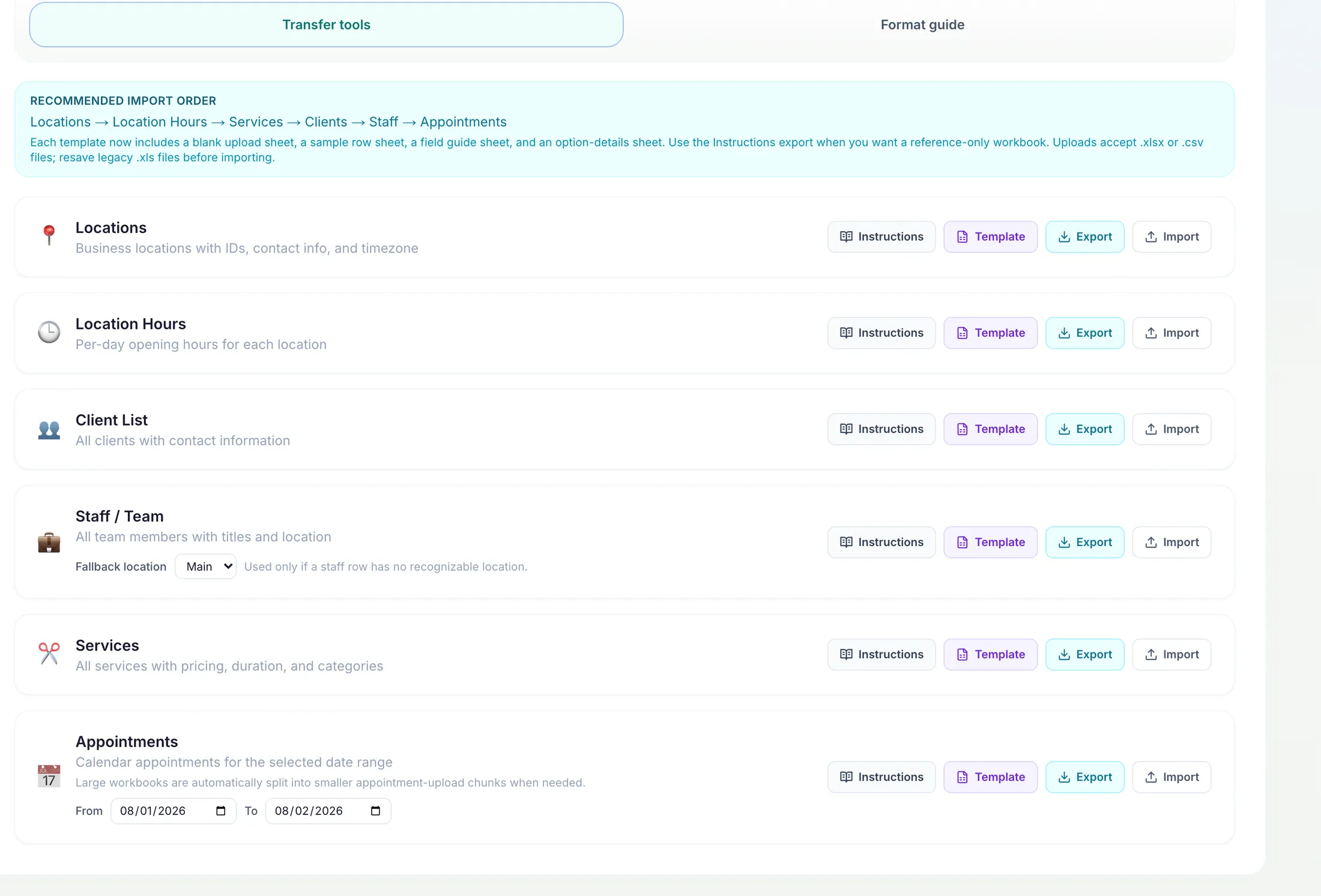
Four steps from your old system to a live calendar
- Step 01
Export from your current system
Most salon systems can export clients, services, staff, and appointments as a spreadsheet. That export is all you need to start.
- Step 02
Fill the guided templates
Navi gives you a template for each data type — with a blank upload sheet, a sample row, and a field guide — so you always know what goes where. Uploads accept .xlsx or .csv.
- Step 03
Import in the recommended order
Locations → hours → services → clients → staff → appointments. Navi checks each file and tells you exactly what it created.
- Step 04
Open your calendar
Your staff columns, service menu, client list, and upcoming appointments are live — the front desk can work from Navi the same day.
What moves — and what doesn't
We'd rather tell you the limits up front than surprise you mid-migration.
Imports into Navi
- Clients — Names and contact information for your whole client list.
- Services — Your service menu with pricing, duration, and categories.
- Staff — Team members with titles and location assignment.
- Locations — Each business location with contact info and timezone.
- Opening hours — Per-day hours for every location.
- Upcoming appointments — Future bookings for a date range you choose, so the calendar is not empty on day one.
Doesn’t transfer
- Loyalty point balances from other systems
- Stored card details (card data never moves between systems)
- Deposits or gift-card liabilities held by your old provider
- Old payment-processor transaction history
Not sure how your current system's export maps onto Navi? Email support@navi-booking.com — we’ll walk through it with you.
Switching questions, answered honestly
What moves, what doesn't, how long it takes, and who helps.
Do I have to re-enter all my clients?+
No. Export your client list from your current system, drop it into Navi’s client template (.xlsx or .csv), and import it. The template includes a sample row and a field guide so the columns are unambiguous.
What happens to my upcoming appointments?+
Navi imports future appointments for a date range you choose, so your calendar starts populated. Import staff and services first — the templates and recommended order walk you through it.
How long does setup take?+
Guided onboarding (business profile, first location, staff, services, owner controls) takes minutes. How long imports take depends mostly on how cleanly your current system exports — the templates are designed to make the mapping obvious, and support helps if a file will not line up.
What can’t move over?+
Loyalty balances from another system, stored card details, deposits held by your old provider, and old processor transaction history don’t transfer. Your client, service, staff, location, hours, and appointment data does.
Is my data locked in once it’s in Navi?+
No. The same tools export your clients, services, staff, locations, hours, and appointments back out as spreadsheets whenever you want.
Will someone help me?+
Yes — email support@navi-booking.com and we'll help you map your current setup onto Navi, from export to first live day.
Need a hand deciding what fits your front desk?
Compare plans, or contact support about services, staff, locations, and rollout questions.